|
The Map Key
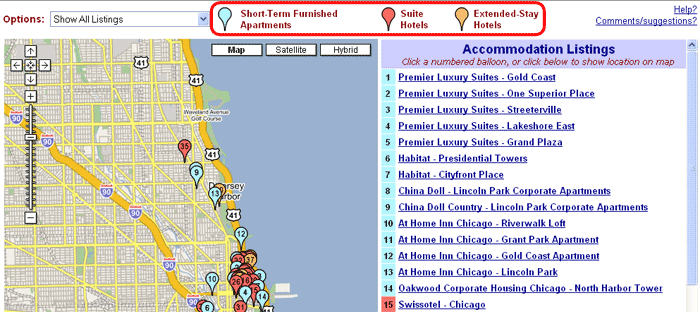
At the top of the map pages, we list the types of listings covered, indicating the color of balloon used to show their locations. Common lisitng
types include temporary furnished rentals, extended stay/apartment hotels, suite hotels, and resorts.
Narrowing the Results
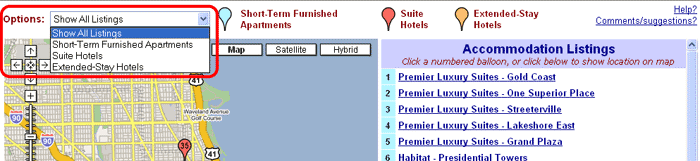
At the top left is an "Options" menu that allows you to filter the results to show any one listing type. All other listings will be removed from the list
at the right, and their balloons will no longer appear on the map. To restore the original map, just select "Show All Listings" from the Options
menu.
Shifting the Map
There are three ways to move (or "pan") the map:
1. Use the arrows in the upper left. (Clicking the box in the center of the arrows returns to the previous
positioning.)
2. Click and drag. For example, drag left to shift the map to the right.
3. Double click anywhere on the map and it will be recentered on this
point.
Zooming In
If the listing balloons seem to be massed together in one spot, you should try zooming in for a closer look. There are two ways to zoom in
(or out):
1. Use the slider on the left, with "+" for moving in closer and "-" for moving farther out.
2. Use your keyboard's plus (+) key and minus key (-).
Getting Listing Information
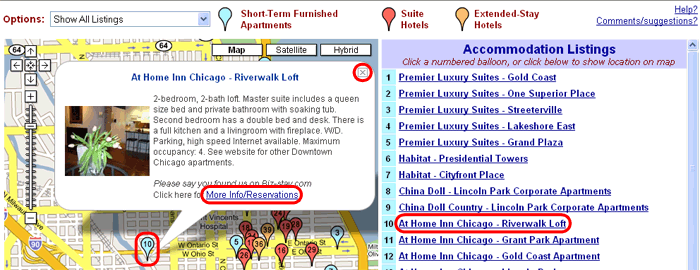
Click on any numbered balloon, and an info bubble appears above it. Click "More info ..." to visit the listing's website. (Here, you can check
availability for your travel dates and make reservations.) To close the
bubble, click the boxed "x" or click on another balloon.
Click a listing on the right, and its info bubble appears above the listing's balloon on the map.
Scrolling Through the Listings
There are usually more listings than can fit on one screen. To see listings farther down the list, just use the scroll bar on the
right. (When you do so, the map will not move.) You can also use your keyboard's arrow keys to scroll up or down.
Map Types
In addition to the standard "Map" view, you can also see a "Satellite" view, or a "Hybrid" (with roads superimposed on the satellite
picture). Simply click the view option you prefer. The hybrid view can be very useful for zooming in and getting a sense of the area surrounding any listing.

|